
-
How to Create Rhinestone Template With Cricut: Full Guide
4 days ago • 0 commentsMany crafters use Cricut Maker and Cricut Explore series machines to create rhinestone templates, a lesser-known but powerful feature. Magic Flock is a specialized ‘rhinestone template material‘ that allows you to transfer and adhere rhinestones easily. This material is known as flock or hotfix, and it is pressed onto your garment or fabric with a heat press.
![how to create rhinestone template with Cricut]()
Get ready with your Cricut machine that can cut the rhinestone template material, especially in the Maker and Explore series. Whether you’re preparing for a custom project or looking forward to expanding your crafting skills, this guide will teach you ‘How to Create Rhinestone template with Cricut‘, with full step-by-step instructions.
Supplies Needed for Your Rhinestone Project
You will need the following supplies and tools for making rhinestone projects:
- Rhinestone font
- Cricut Maker or Explore series machine
- Weeding tool
- Heat press or household iron
- StandardGrip cutting mat
- Rhinestones
- Rhinestone template flock
- Brush or rhinestone applicator tool
- Transfer tape
- Garments or items to apply the rhinestones
Important Note: Cricut Joy is not designed to create rhinestone projects.
How to Create a Rhinestone Template With Cricut
If you’re planning to create a rhinestone template with your Cricut machine, you must follow a structured approach. Follow this step-by-step guide to get optimal results at every stage.
Step 1: Choose or Design Rhinestone Pattern
The Cricut Design Space software doesn’t currently support rhinestone fills. You have two options:
Option A: Use a Pre-made Design
- Open Cricut Design Space and upload your pre-made design image or SVG file.
- Choose the Upload Image option and then Browse.
- Select your SVG file from your system and click Open.
- Insert the design onto the canvas.
Option B: Create Your Own
- Use the Shapes tool to create individual shapes and arrange these shapes in the desired pattern on the design.
- Add a rhinestone grid to your design.
- Adjust the spacing and size of the grid to match the size of your rhinestones.
- Place the design on the top of the grid.
Step 2: Resize Your Design
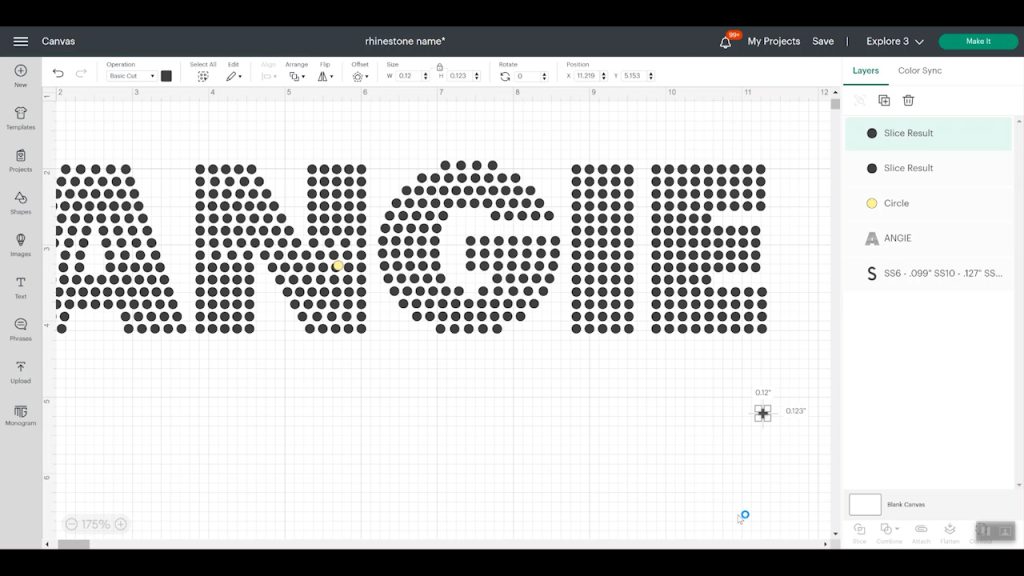
- Resize the font design so each circle has a diameter of 0.127 inches. Once this is achieved, you’re ready to proceed.
- Verify that each circle is correctly sized.
- Ensure all circle layers are set to Cut.
- Use Attach to keep everything in place during cutting.
- If you want the design to act as a template, you can use the Slice feature to cut the design from the rhinestone grid. You can use the Weld feature for the individual rhinestone shapes to create a single shape for cutting.
![How to Install Rhinestone https://www.dafont.com/ app on windows]()
Note: Remember to mirror your design, especially when it contains text, to ensure proper orientation after pressing.
Step 3: Set Material Settings
- Tap on Browse All Materials and go to Material Settings.
- Click “Add New Material” and locate the green tab at the bottom of the screen.
- Name it as Rhinestone Flock, and then click Save.
- Select “More Pressure” and select the box to apply to all mats.
- Return to the cut screen.
Step 4: Cut the Rhinestone Template
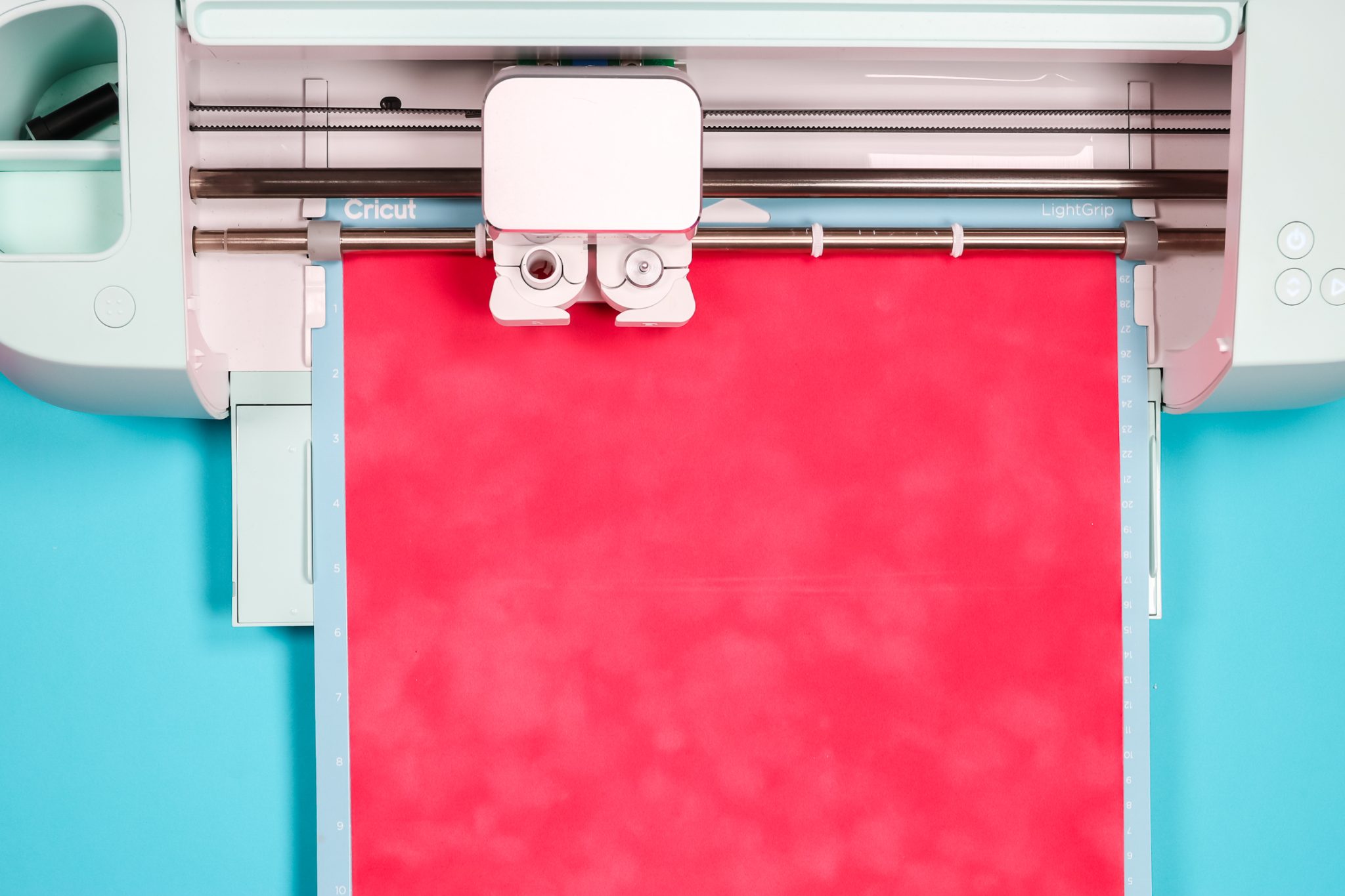
- Now, place the flocked template material on a StandardGrip mat (sticky side down).
- Use a brayer tool to press the material onto the mat.
![Cricut Standard Grip mat]()
- After that, ‘Click Go‘ to begin cutting.
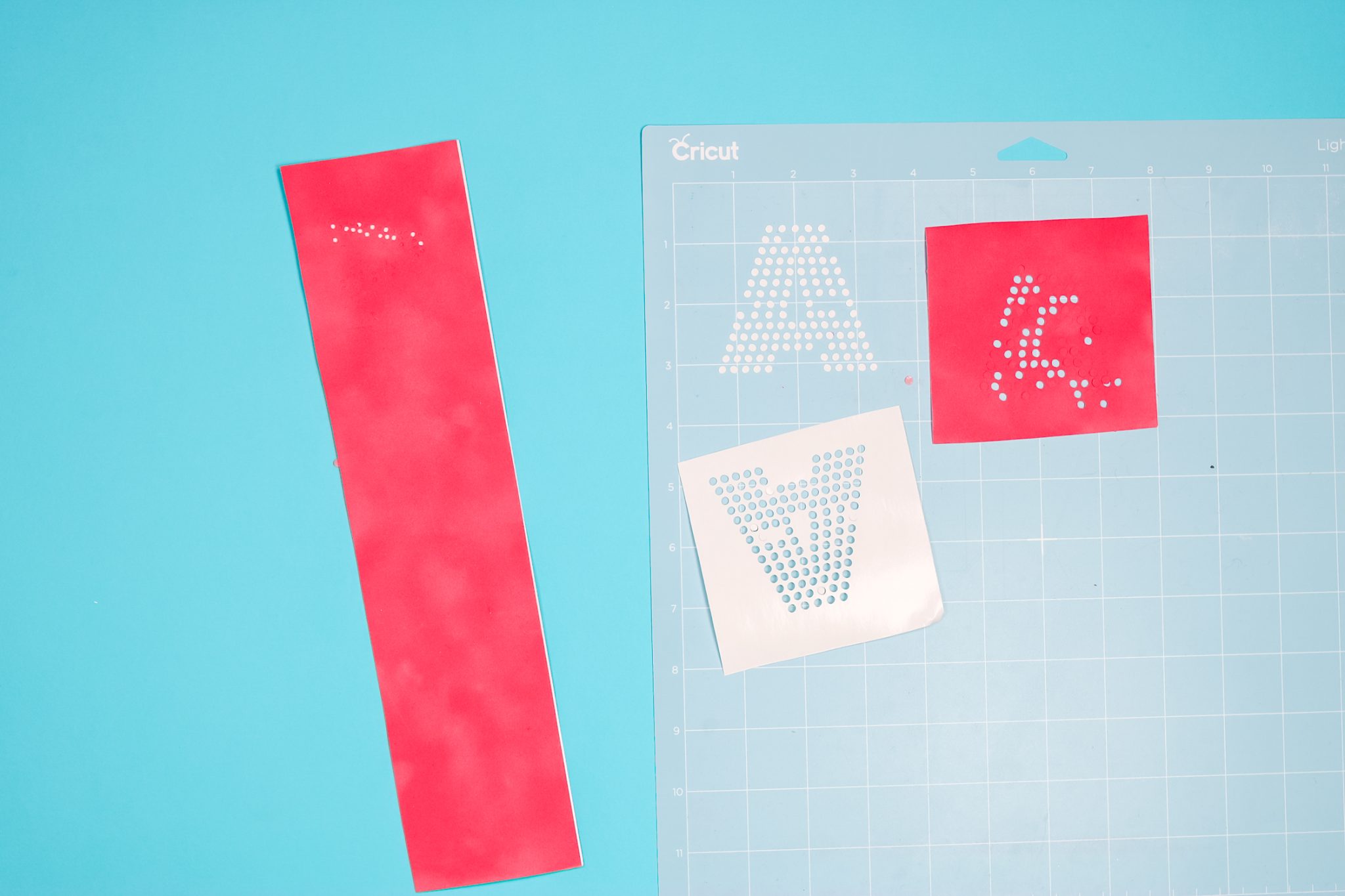
- If you select “Felt” as your material setting in ‘Cricut Design Space‘, the mat may become cluttered with debris, as shown in the image.
![Cricut Design Space Download]()
- Try selecting the flocked paper setting with less pressure. This will allow you to move the mat easily without making a mess.
- Consider using a double-cut setting to ensure a complete cut, especially for detailed designs....
-
install cricut Design Space app
11/08/2025 at 08:52 • 0 commentsGetting started with Cricut is simple, even if you are new to crafting. You can make gifts, wall art, and many other designs using your crafting machine. Before you begin, go to the cricut.com/setup website to download and install cricut Design Space app. Once you connect your machine, you can start creating your own designs or use ready-made ones from the app’s collection.
![Cricut.com Setup (2)]()
-
How to Restart Cricut Explore Air 2? (Easy Steps)
10/29/2025 at 10:32 • 0 commentsHave you ever been in the middle of a DIY project when your Cricut Explore Air 2 suddenly stops working? Don’t worry – it happens to many Cricut users. Sometimes, a quick restart is all your machine needs to get back to normal. Restarting helps fix small glitches, connection issues, or software errors that can slow down your work. Here, I am going to walk you through when and how to restart your Cricut machine the right way. Whether it is a simple restart or a hard reset, these easy steps will help you get your machine running again so you can go back to creating your favorite designs without any stress.
When Should You Restart Your Cricut Explore Air 2?
You should restart your Cricut machine when it stops working properly or doesn’t respond as expected. Restarting helps fix small issues and refreshes the system so it can work smoothly again.
- During a cut: If your project freezes in the middle of cutting, then press the “Stop” button. If the light is still on, turn off the machine and turn it back on to reset it.
- After updates: Once you install a Cricut Design Space or firmware update, restart the machine to make sure the new changes work properly.
- For minor glitches: If your machine starts acting strangely or doesn’t follow your commands, then a restart can help clear temporary bugs.
- To clear the buffer: If you cancel a DIY project, then restarting clears leftover commands so your next design runs without problems.
- After connection loss: If your Cricut machine loses connection to your device, then restarting can help reconnect it easily.
Steps to Restart Cricut Explore Air 2
Restarting your Cricut Explore Machine is an easy process that helps resolve small issues and refresh your machine for smooth performance. Perform the steps in the section below to do it the right way:
Step 1: Press the power button to turn off your crafting machine. Make sure all the lights on the machine are off.
Step 2: After that, unplug the power cord from the machine and the wall outlet.
Step 3: Wait for about 1 minute. This short break allows the machine to reset completely.
Step 4: Next, connect the power cord to the wall socket and then to your machine.
Step 5: Now, you have to press the power button again to turn it back on.
Once your Cricut Explore machine restarts, you can try running a simple cut test to confirm that everything is working correctly.
Steps to Restart Cricut Explore Air 2 via Cricut Design Space
You can also restart your Cricut Explore Air 2 through the Cricut Design Space app if your machine is connected to a desktop or mobile phone. This method is very easy and helps fix software-related issues or connection errors. Follow these easy steps:
Step 1: First of all, you will need to open the ‘Cricut Design Space app‘ on your computer or phone.
Step 2: In the top-left corner, click on the Menu icon and go to Account or Settings.
Step 3: From the menu, select Machine and choose your Cricut model from the list.
Step 4: Click on Disconnect or Forget Device to remove the connection temporarily.
Step 5: After that, close the Cricut Design Space Software completely and then wait for a few seconds.
Step 6: Now, reopen Cricut Design Space, go to Connect Machine, and follow the prompts to reconnect your machine.
Once reconnected, your Cricut cutting machine will automatically restart through the app, which helps clear connection glitches or command issues.
When to Try a Hard Restart for Cricut Explore Air 2
You should try a hard restart for your Cricut Explore Air 2 when it stops working properly or doesn’t respond like it normally does. A...
Read more »


 Lutetium
 Víctor Mayoral Vilches
 matteo
 Wassim
 JP Gleyzes
 Reginald Sourn
 Zak Fitzgerald