 Arnov Sharma

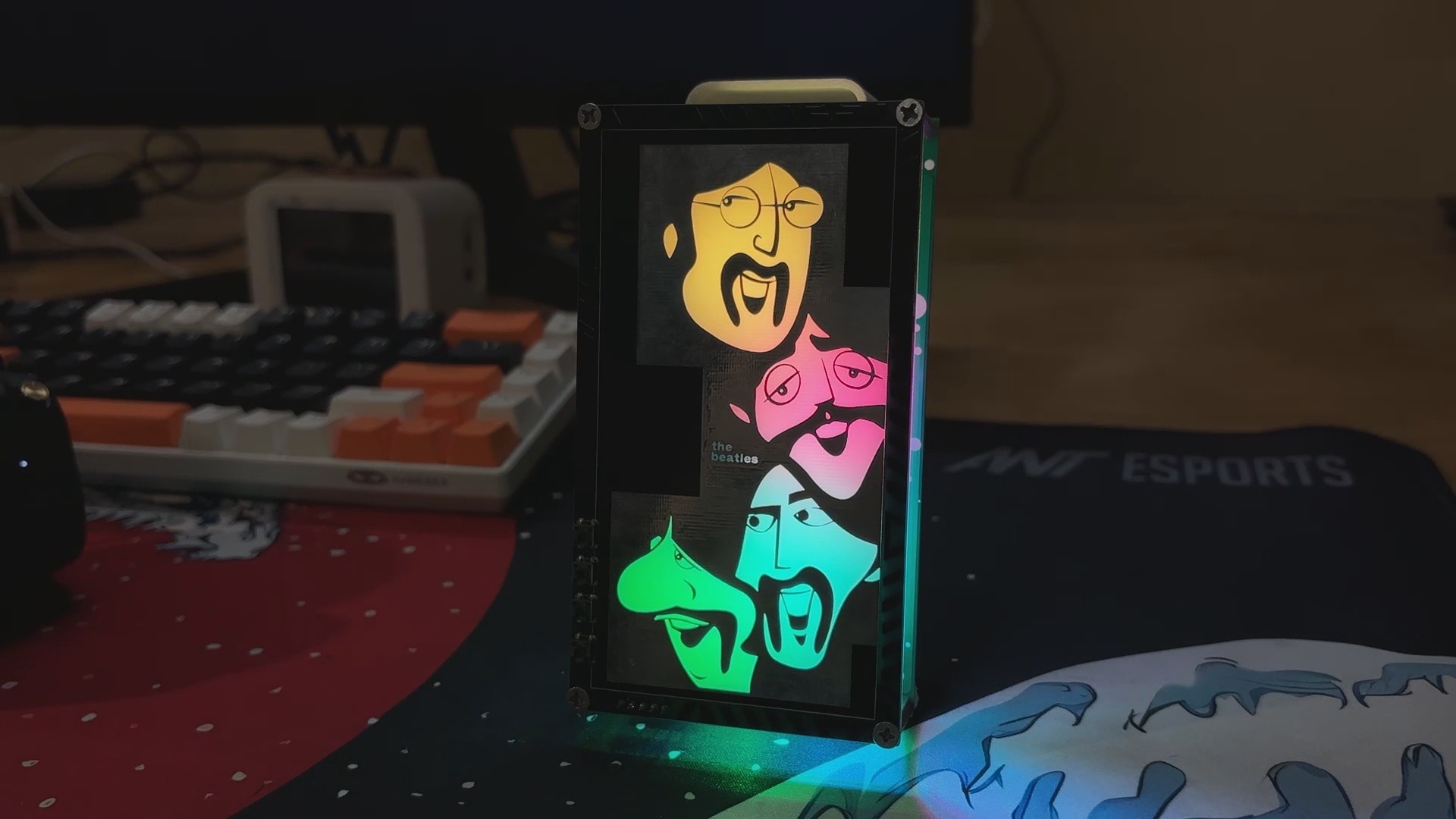
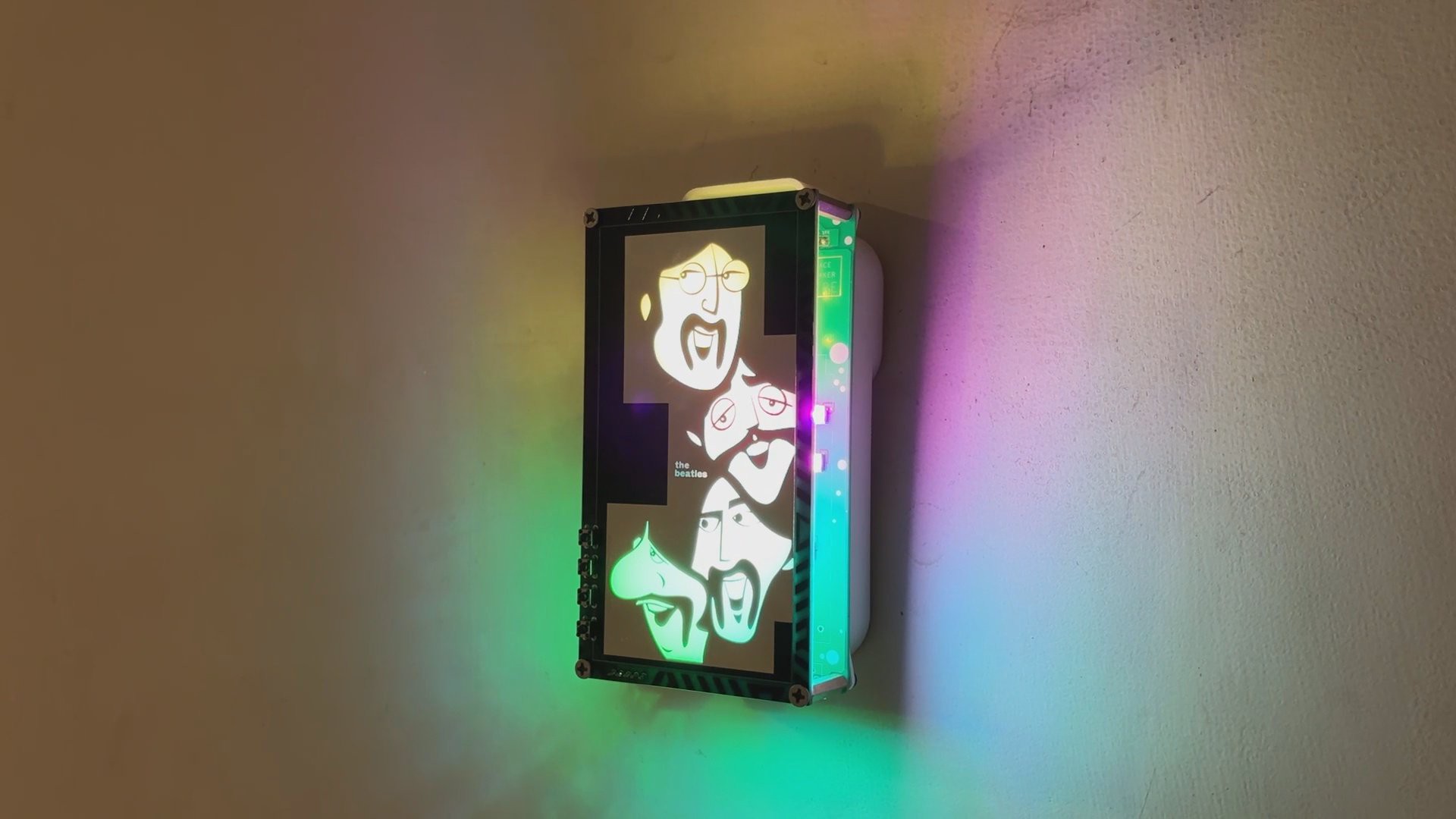
Using my electronics skills, I turned the whole idea into a glowing, music-playing tribute. It’s not just a lamp or just a music player; it’s a fusion of ideas: a custom LED-lit music box, a visual homage, and a piece of electric art.
I’m not even sure what to call this device for now; I’m going with Let It Glow.
Drop your name suggestions in the comments.
Materials Required
These were the materials used in this project:
- Custom PCBs
- Raspberry Pi PICO 2
- WS2812B RGB LEDs
- DF MINI PLAYER
- SD CARD
- IP5306
- 10 uF 1206 Capacitors
- 100 nF 0603 Capacitors
- Type C Port
- SMD Indicator LED 0805 Package
- Push Buttons 4x4
- Li-ion Cell
- 3D-printed parts
- M2.5 Screws
- M2.5 PCB standoffs
PCB ART
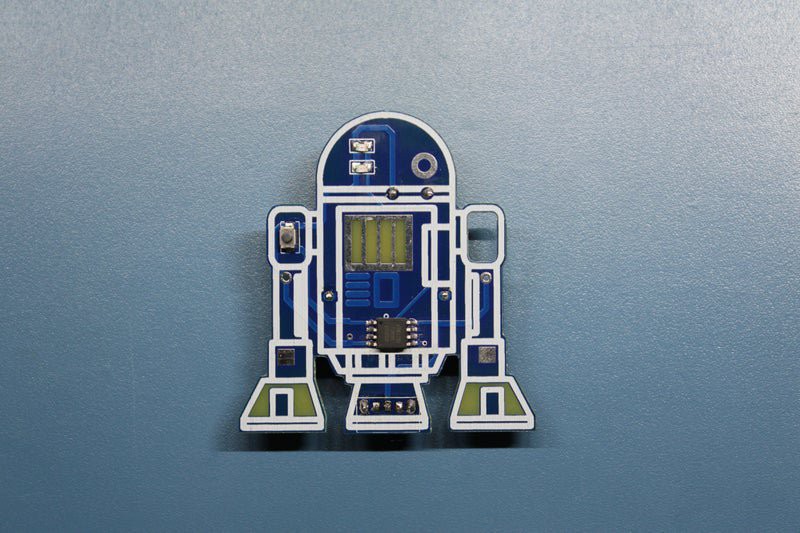
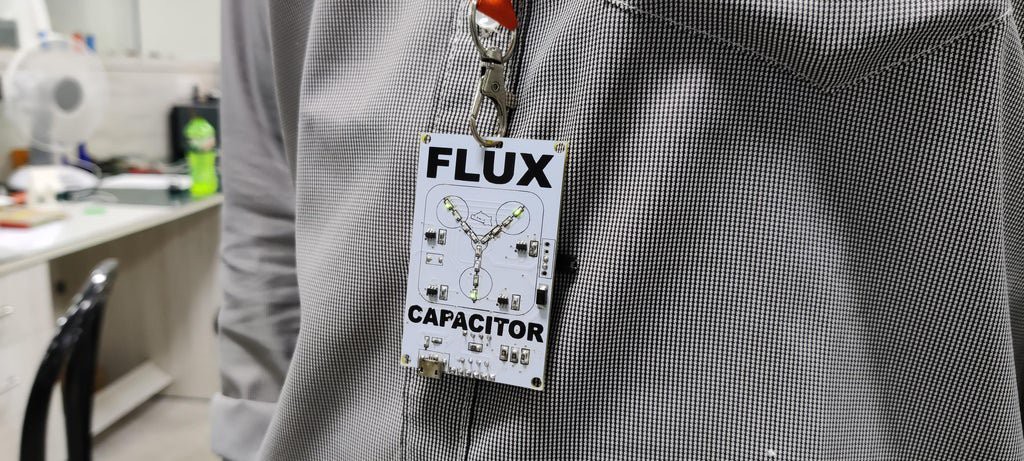

I’ve always loved art, especially painting. So when I started learning electronics, I was instantly intrigued by how makers were turning PCBs into visual canvases. Logos, illustrations, and patterns are all etched into the solder mask and silkscreen layers. That’s when I knew I had to try it myself.
My journey into PCB art began with a Flux Capacitor board, where I used LEDs to recreate the iconic flux capacitor design from Back to the Future. That project gained attention on Hackaday and other maker platforms, and it sparked a whole series of creative builds.
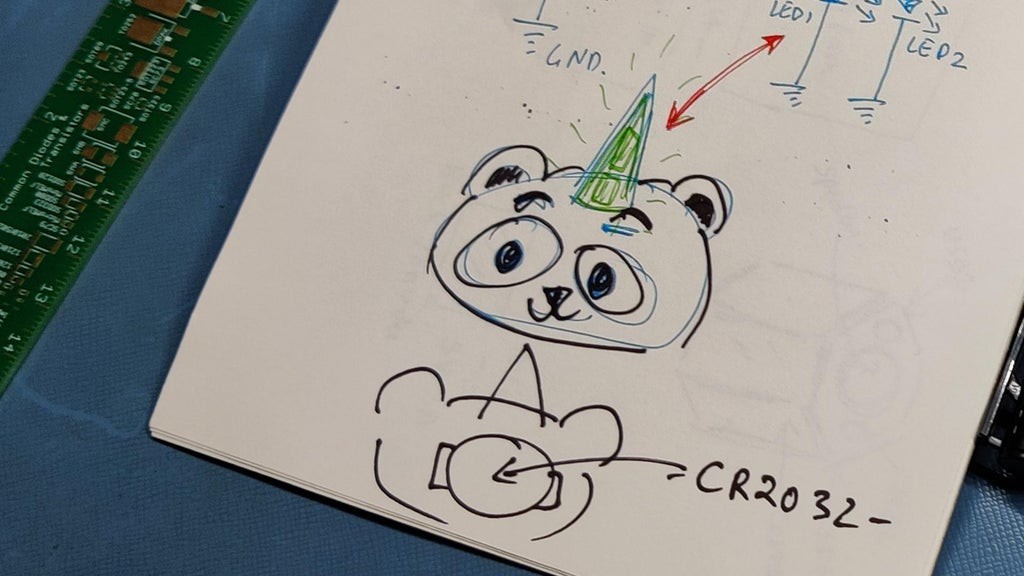
Next came Pandacorn, which was a panda with a unicorn horn. I placed all the SMD components and LEDs on the bottom side of the board and designed the panda illustration on the top. The horn area had the solder mask removed from both layers, allowing light from the flipped LEDs to shine directly through the board. I first saw this clever trick in a Hackaday SAO badge, and it opened up a whole new way of thinking about PCB layering.
Since then, I’ve created multiple themed boards inspired by Halo, Attack on Titan, heart-shaped badge, R2-D2, and more. You can check them all out on my Instructables page.
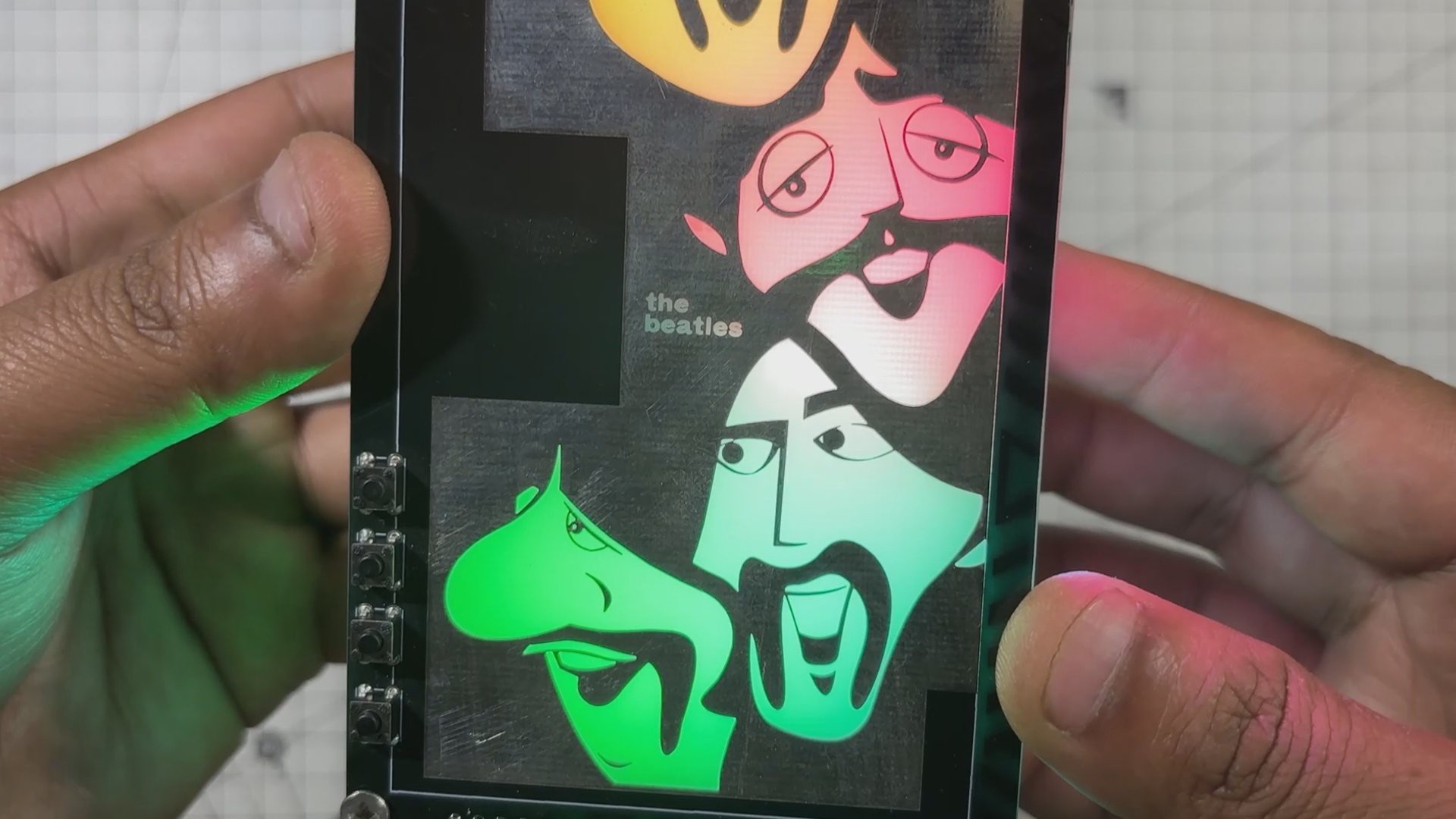
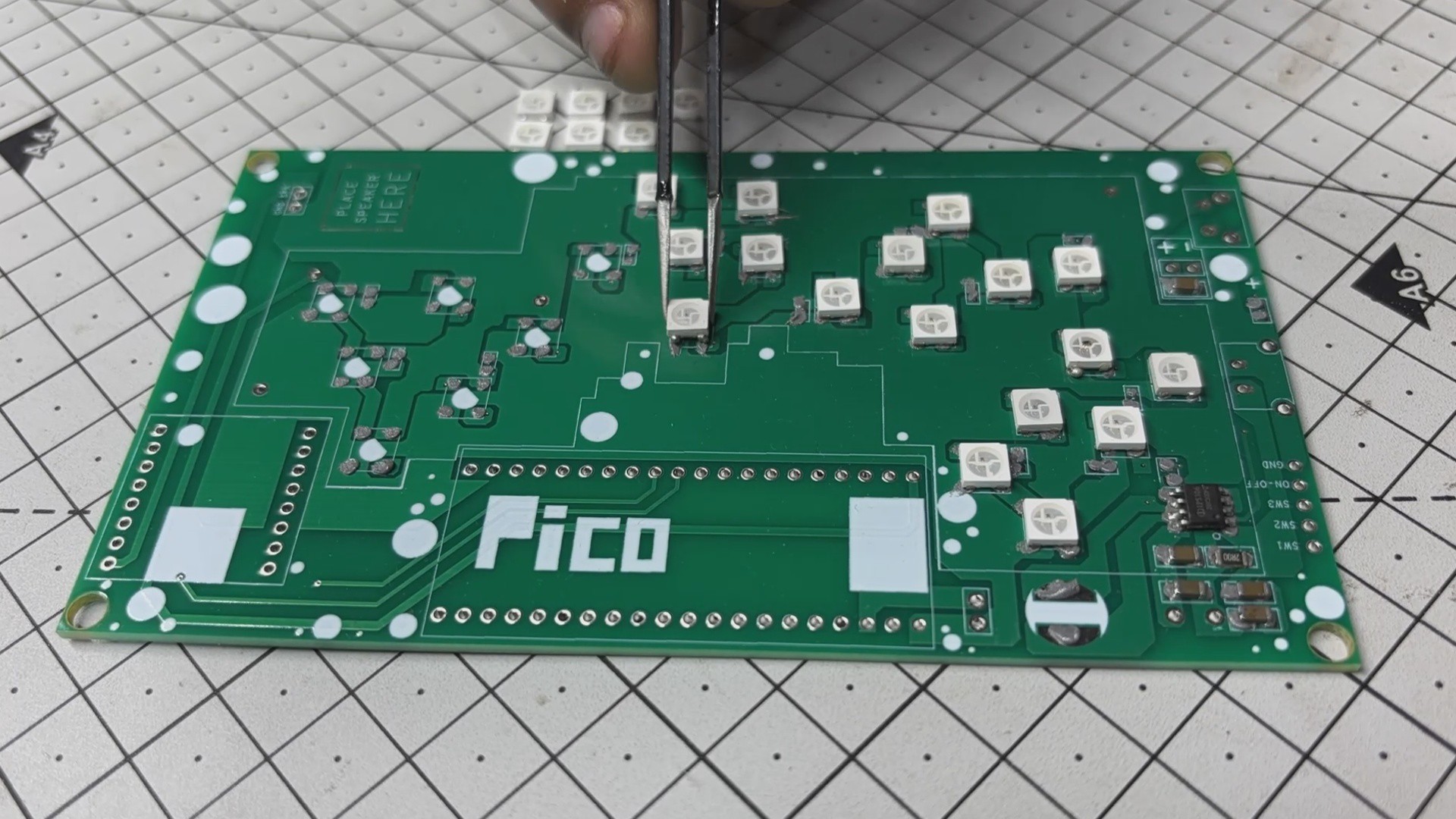
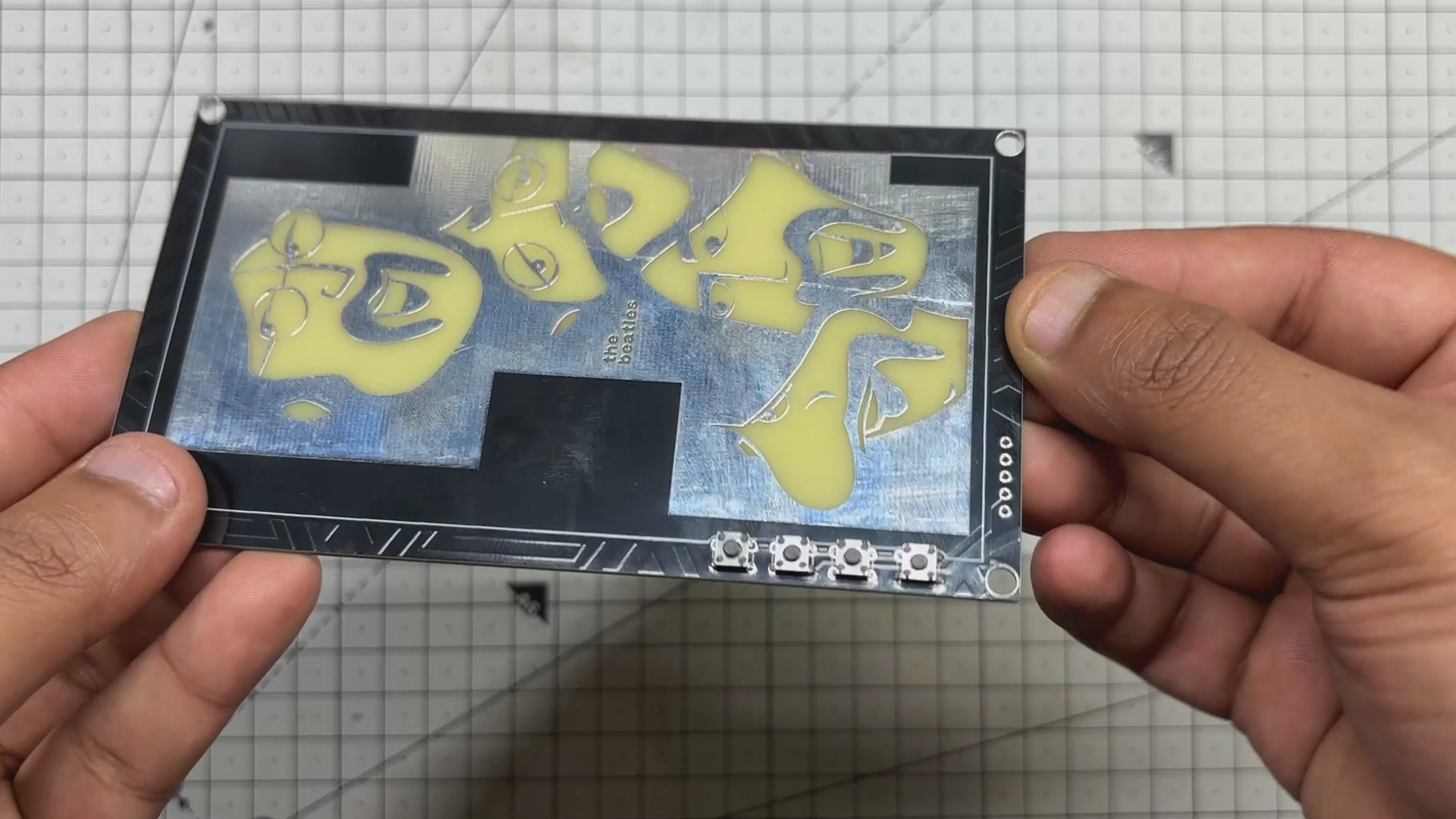
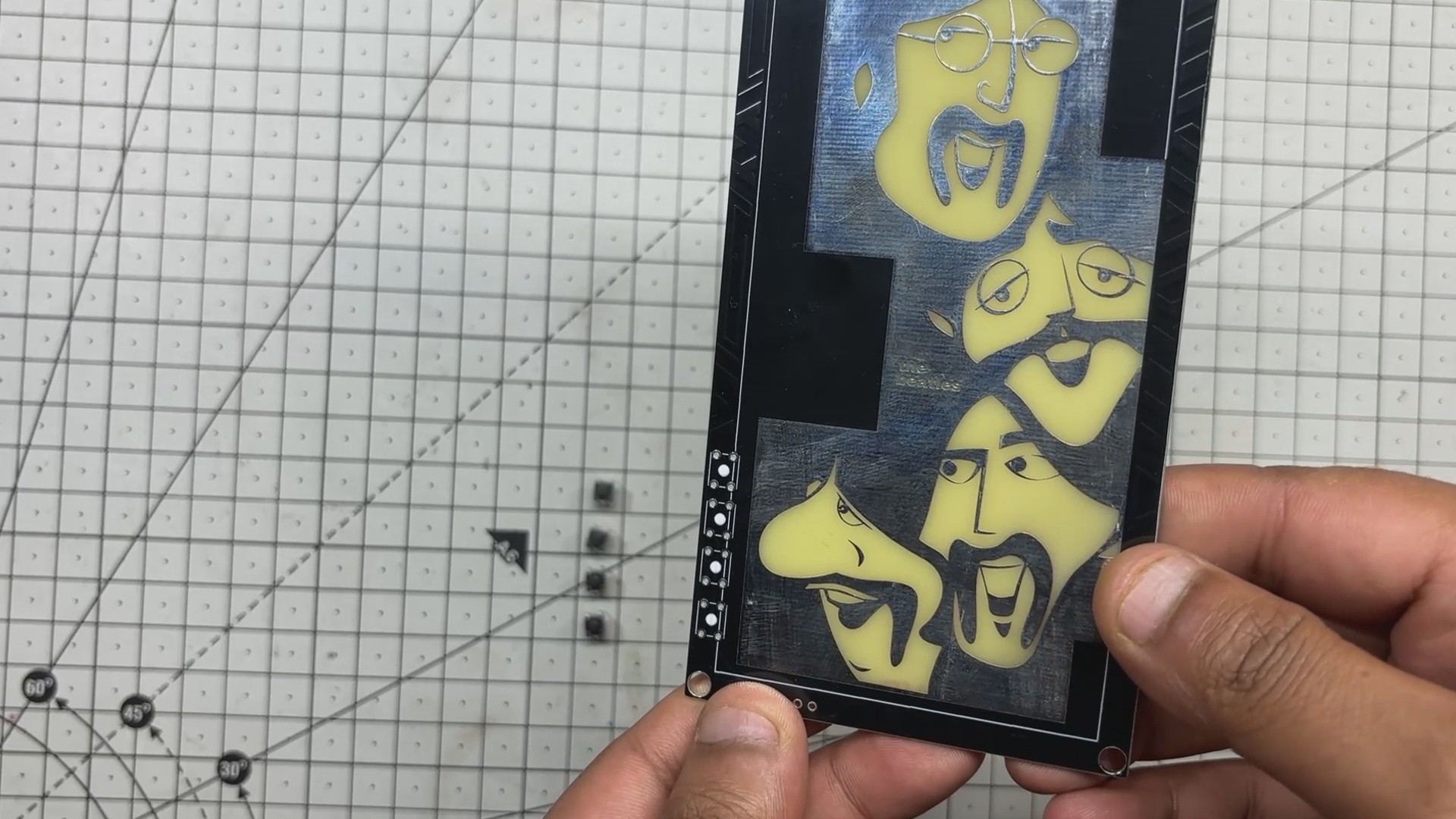
For the Beatles-inspired art board, my approach was simple but intentional. I searched for a cartoon-style design of the original Beatles that I could replicate on a PCB. Then I used solder mask openings on both the top and bottom layers to control how light passes through. RGB LEDs mounted on the lower PCB shine upward, illuminating the artwork from behind. The result is a glowing tribute where electronics and illustration merge into one expressive piece.
This is what PCB art means to me: turning circuits into stories and solder mask into brushstrokes.
DESIGN
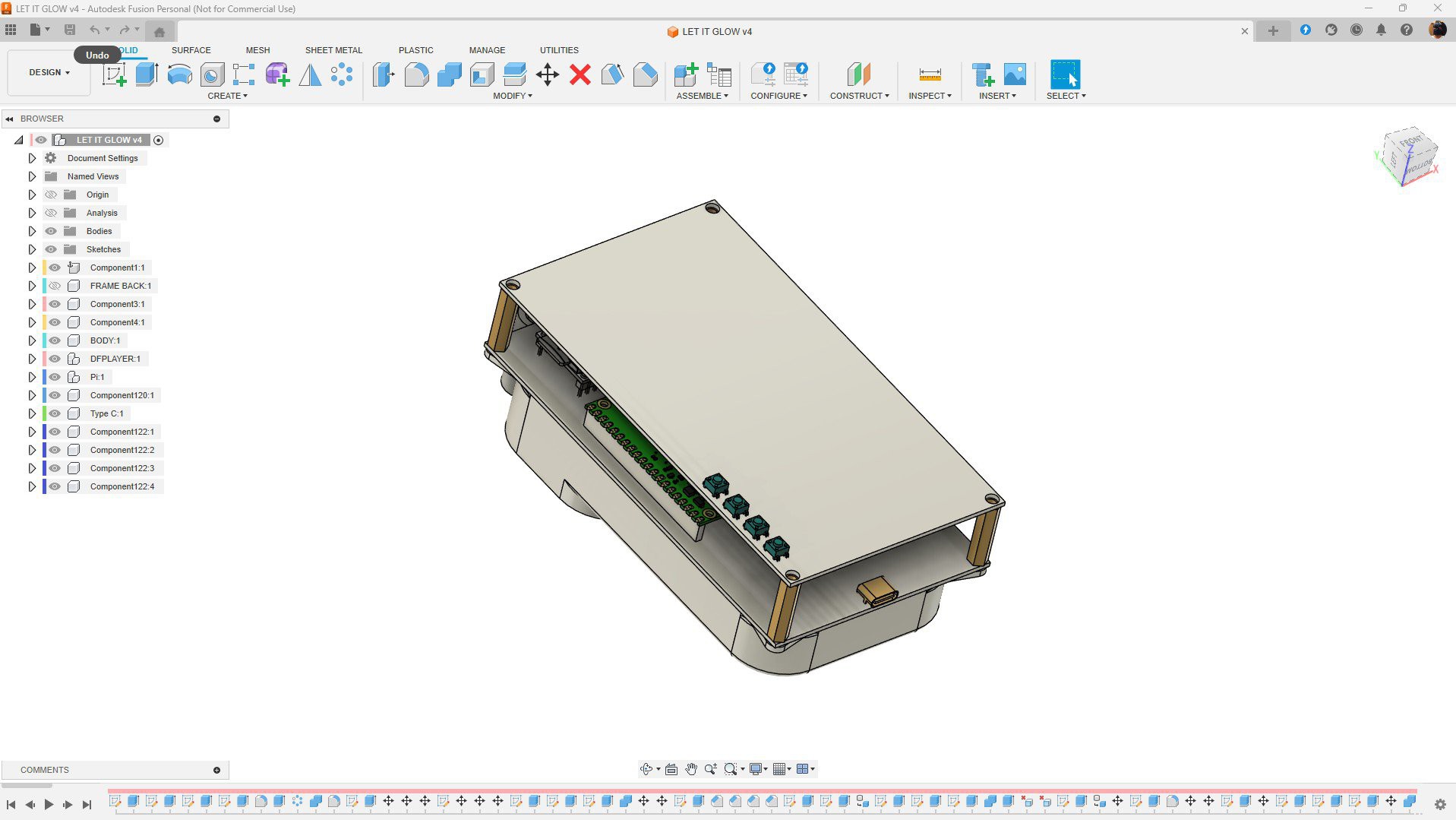

Before starting the PCB design, I first created a 3D model in Fusion 360.
For projects like this, a 3D Model is super crucial, as it allows you to finalize the size and placement of major components, which affects the PCB layout. Precise dimensions and positioning are essential when working with tight tolerances and layered boards.
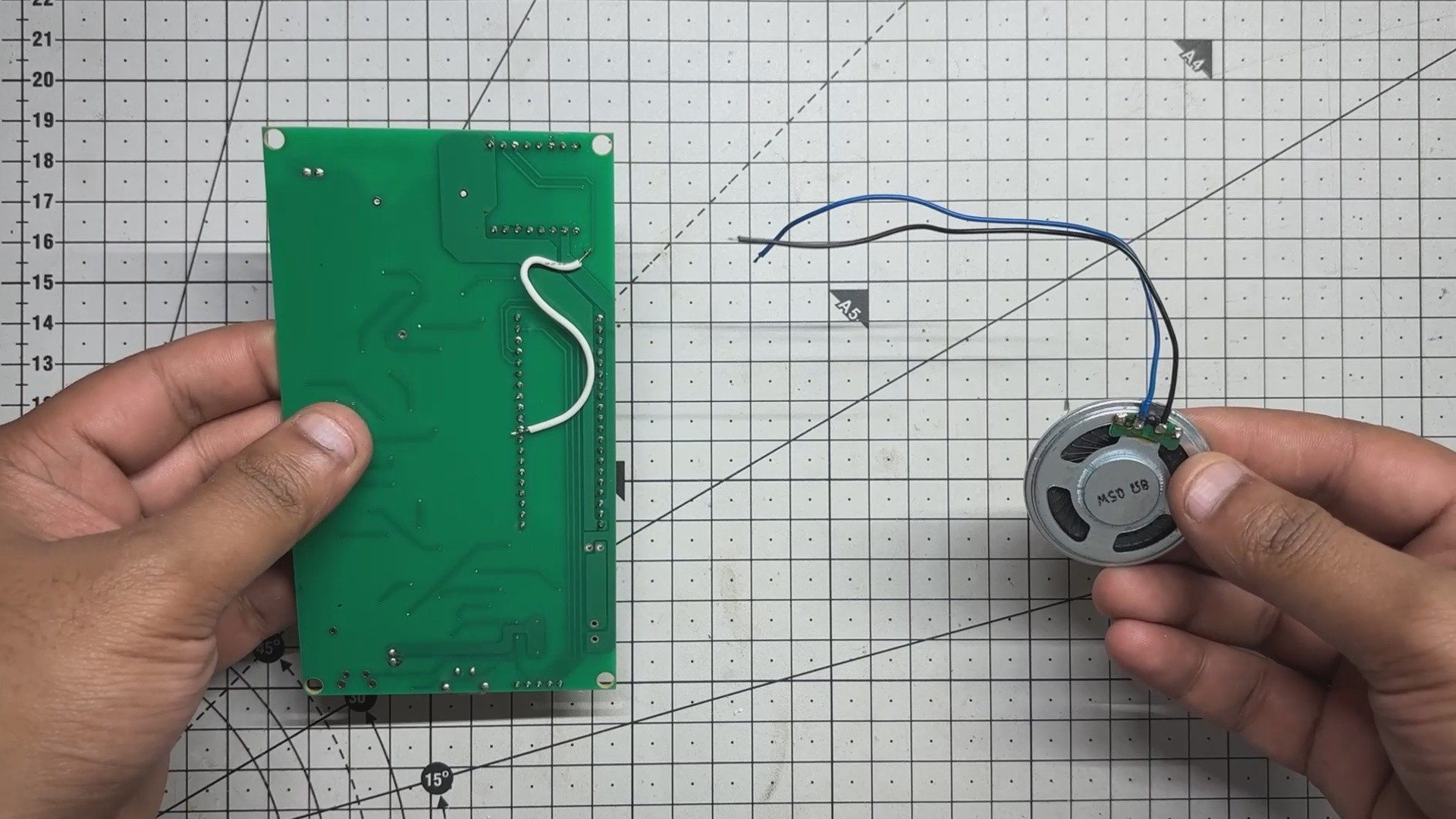
In this build, the speaker plays a central role. It not only needs to be supported securely within the enclosure but also positioned to enhance sound quality. That’s why designing the enclosure early was key; it helped shape both the mechanical and acoustic aspects of the project.
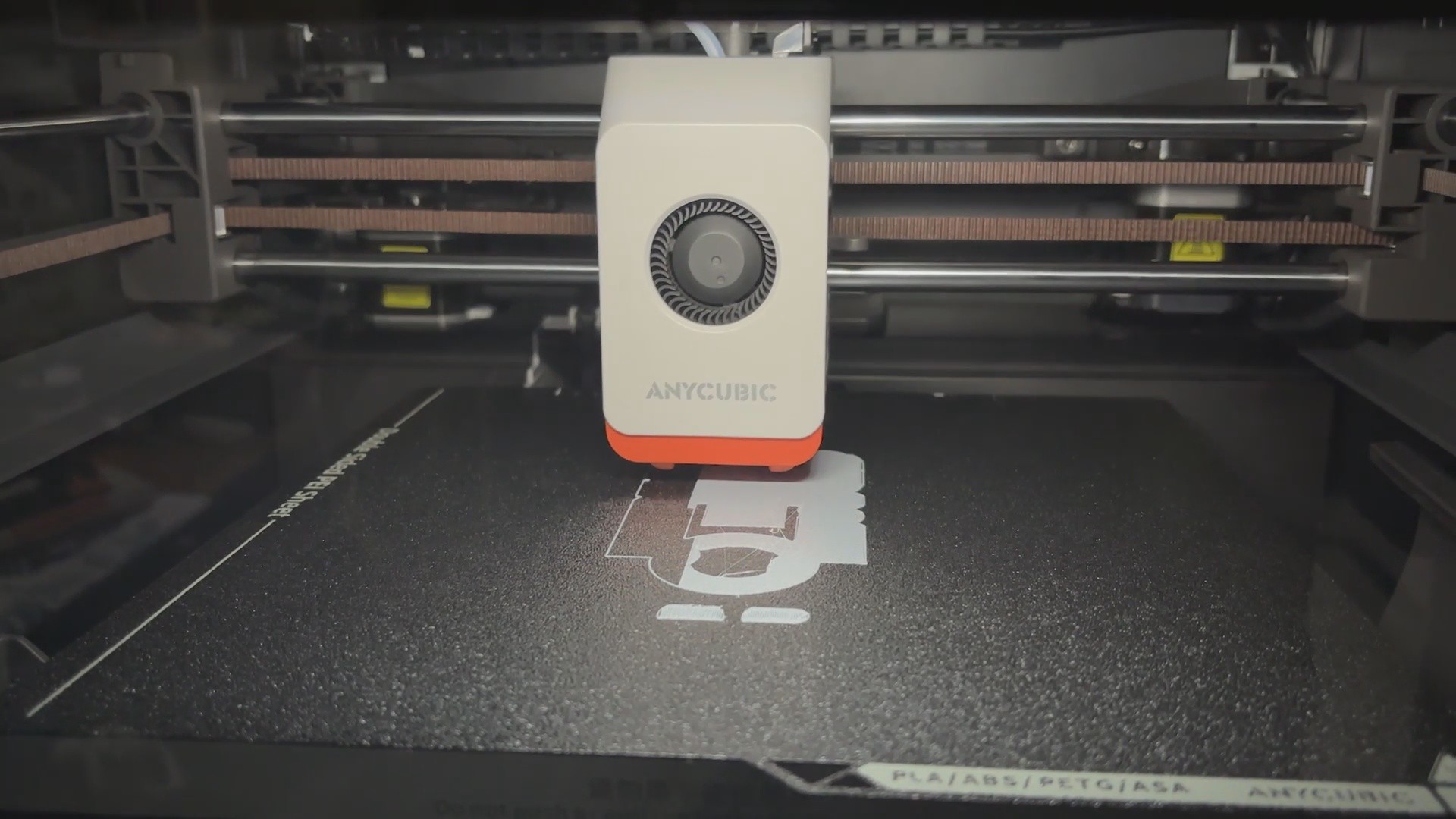
Once the model was complete, I created an enclosure that houses both the speaker and the lithium cell. The mesh file was exported and 3D printed using my new Anycubic Kobra S1 — giving the project a clean, custom-fitted shell that ties the whole build together.
PCB DESIGN
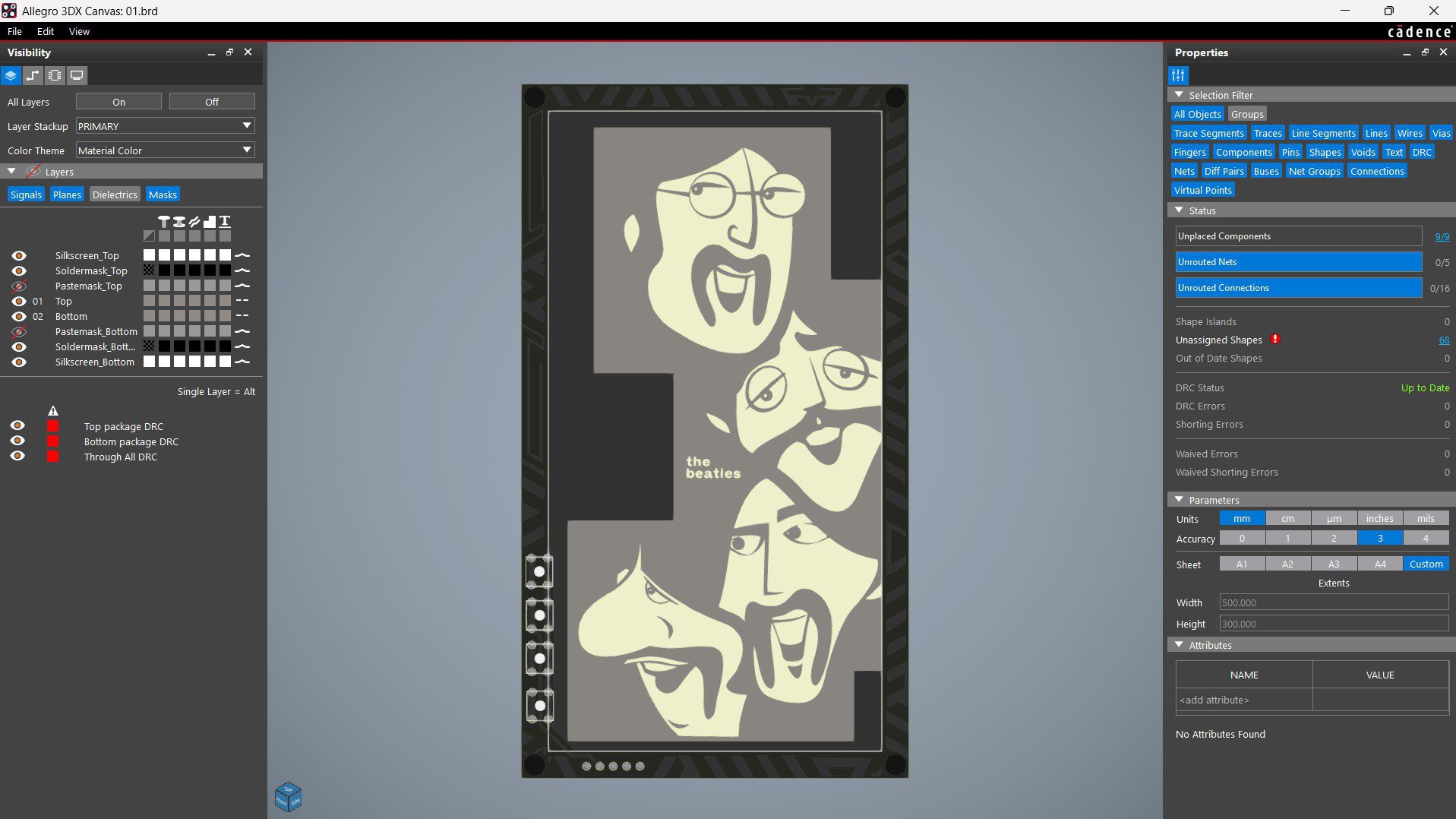

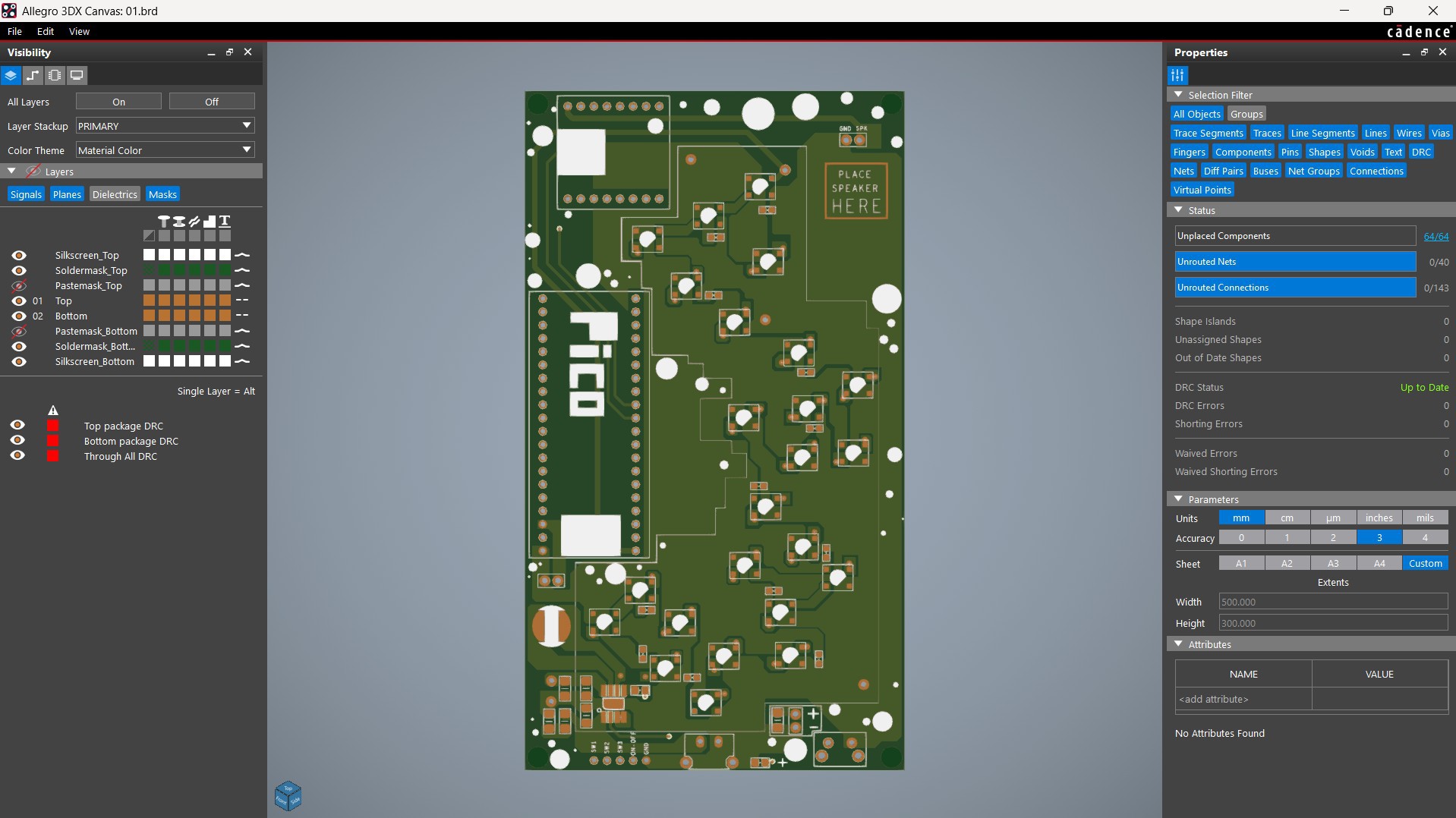


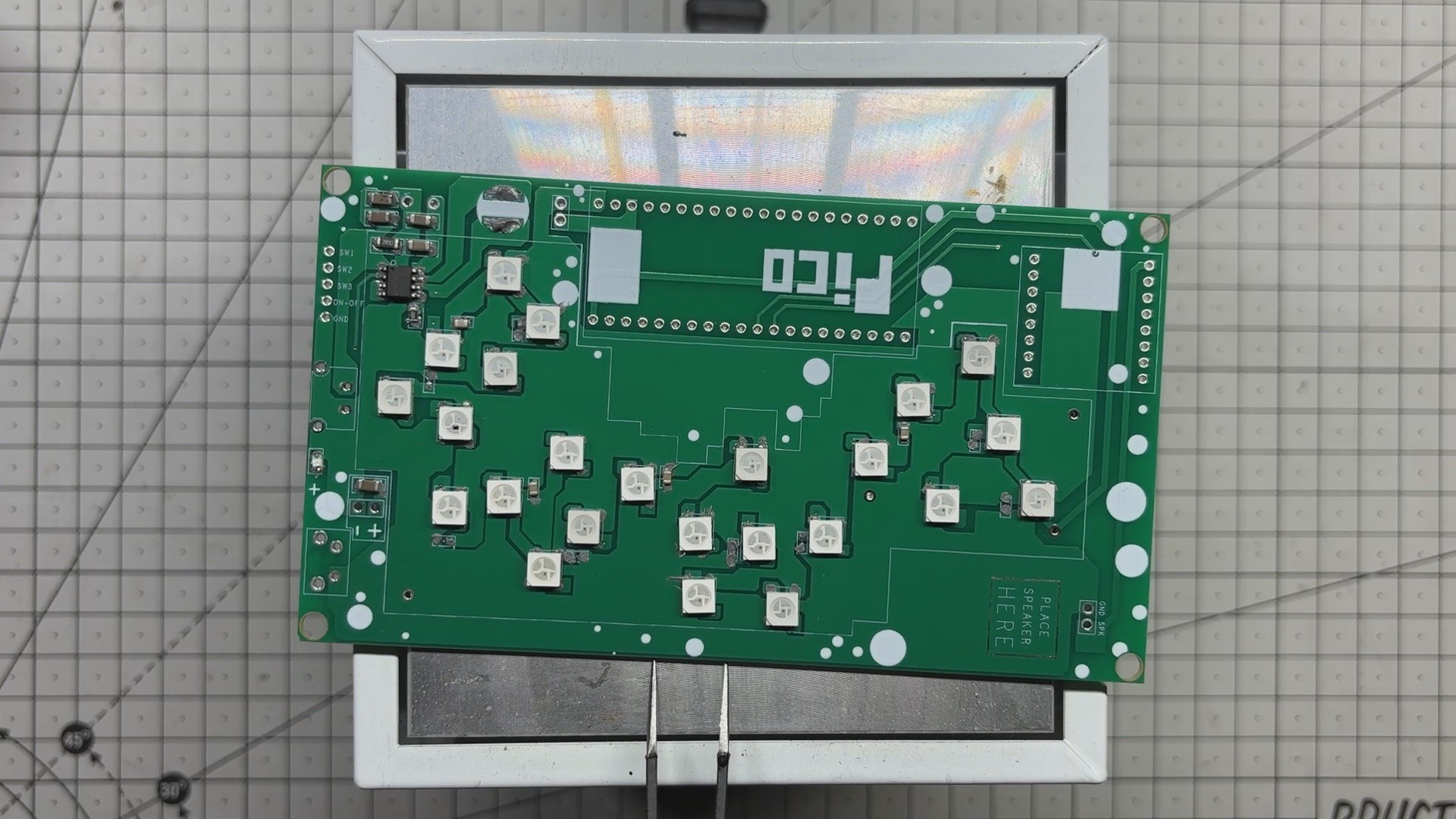
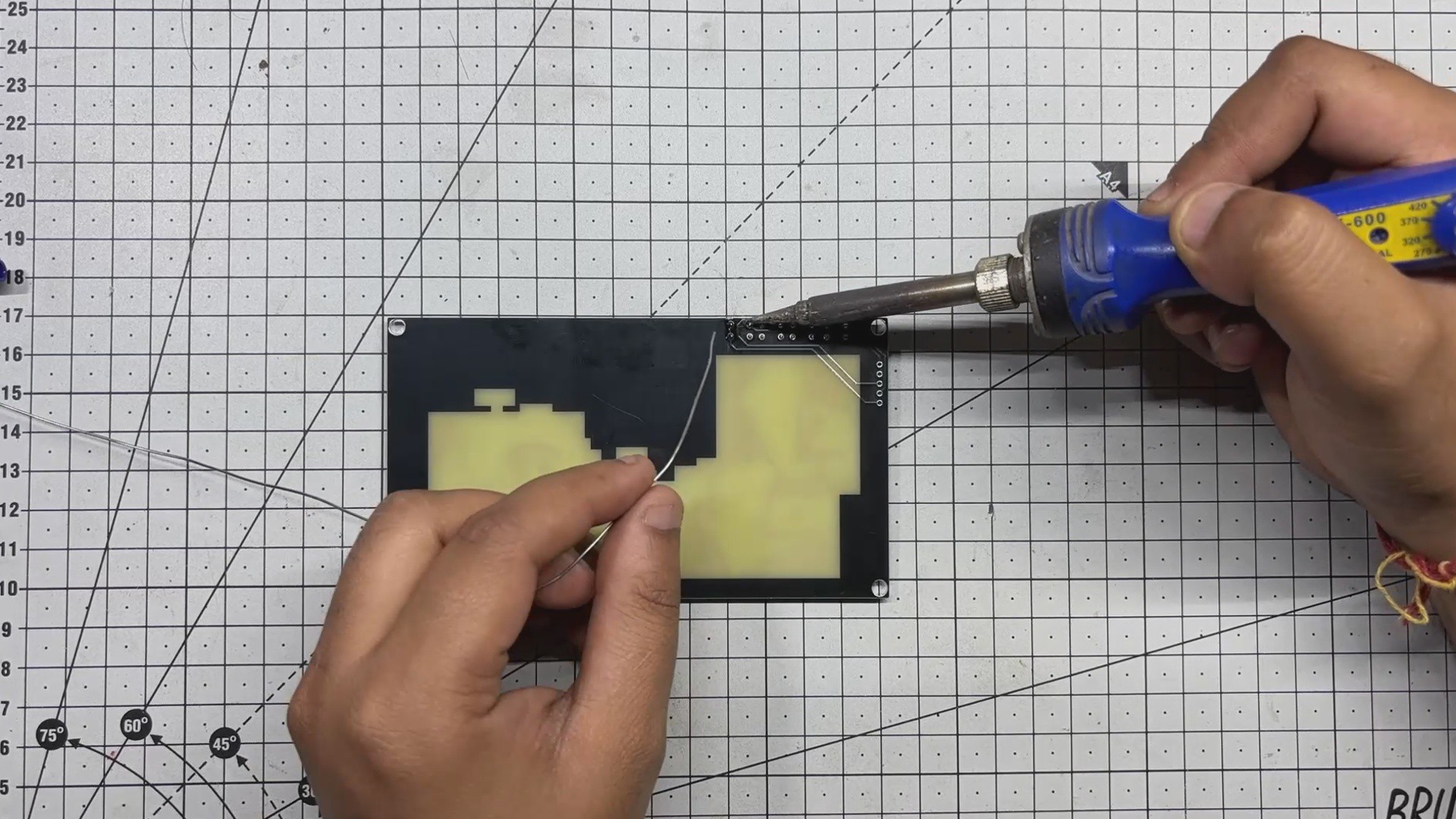
Next comes the most important section of this project, the PCB design process, which involves two separate PCBs: the Front Art Layer and the Main Board that holds all the electronics.
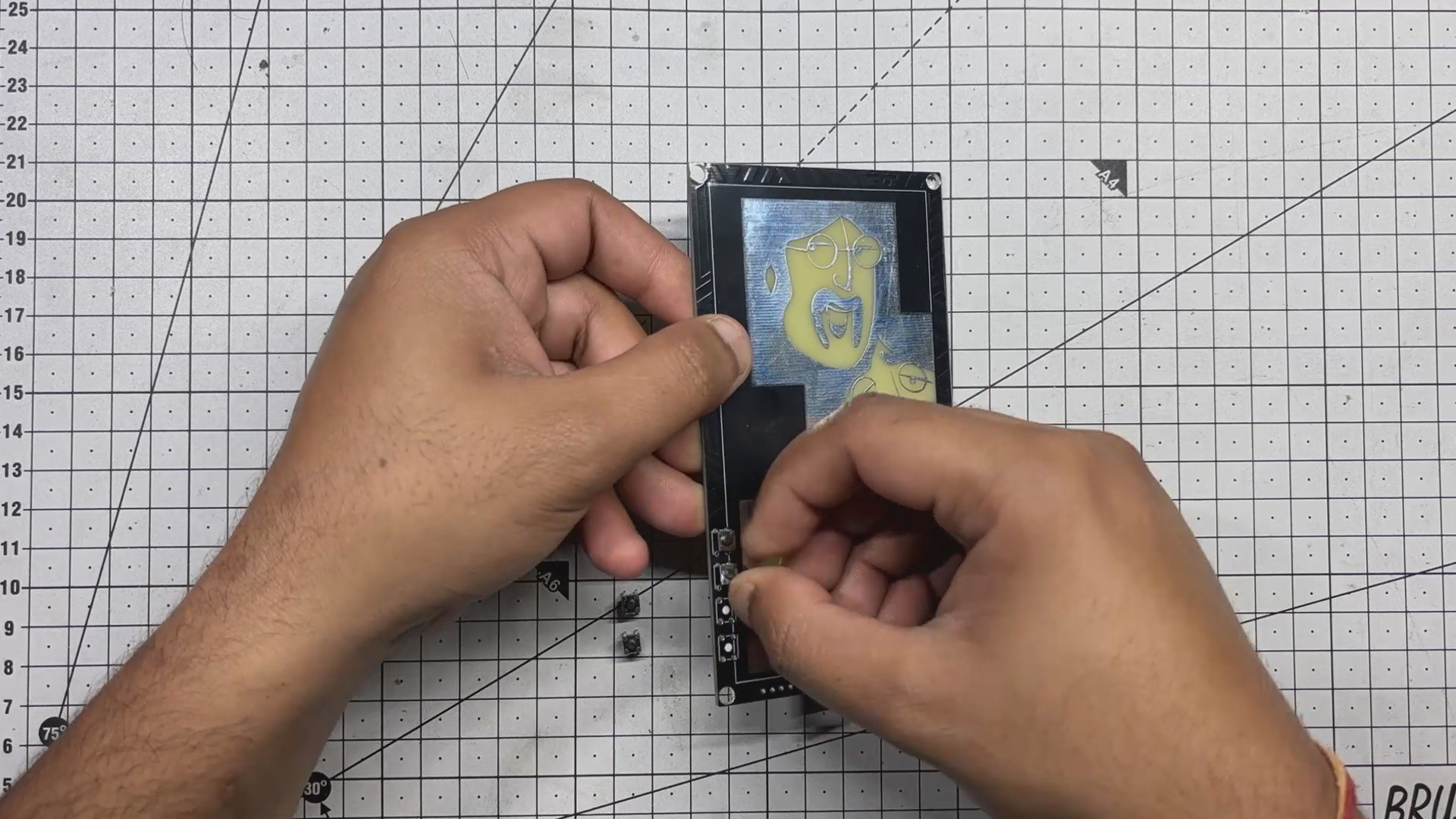
We begin with the Main Board by creating a simple schematic that includes the Raspberry Pi Pico connected to the DFPlayer Mini and a CON5 header pin. This header connects GPIO12, GPIO13, and GPIO15 along with GND from the Pico. These three GPIOs are used as button inputs for next track, volume up, and volume down functions.
The DFPlayer Mini is connected to GPIO7 and GPIO8 of the Pico, which serve as its TX and...
Read more »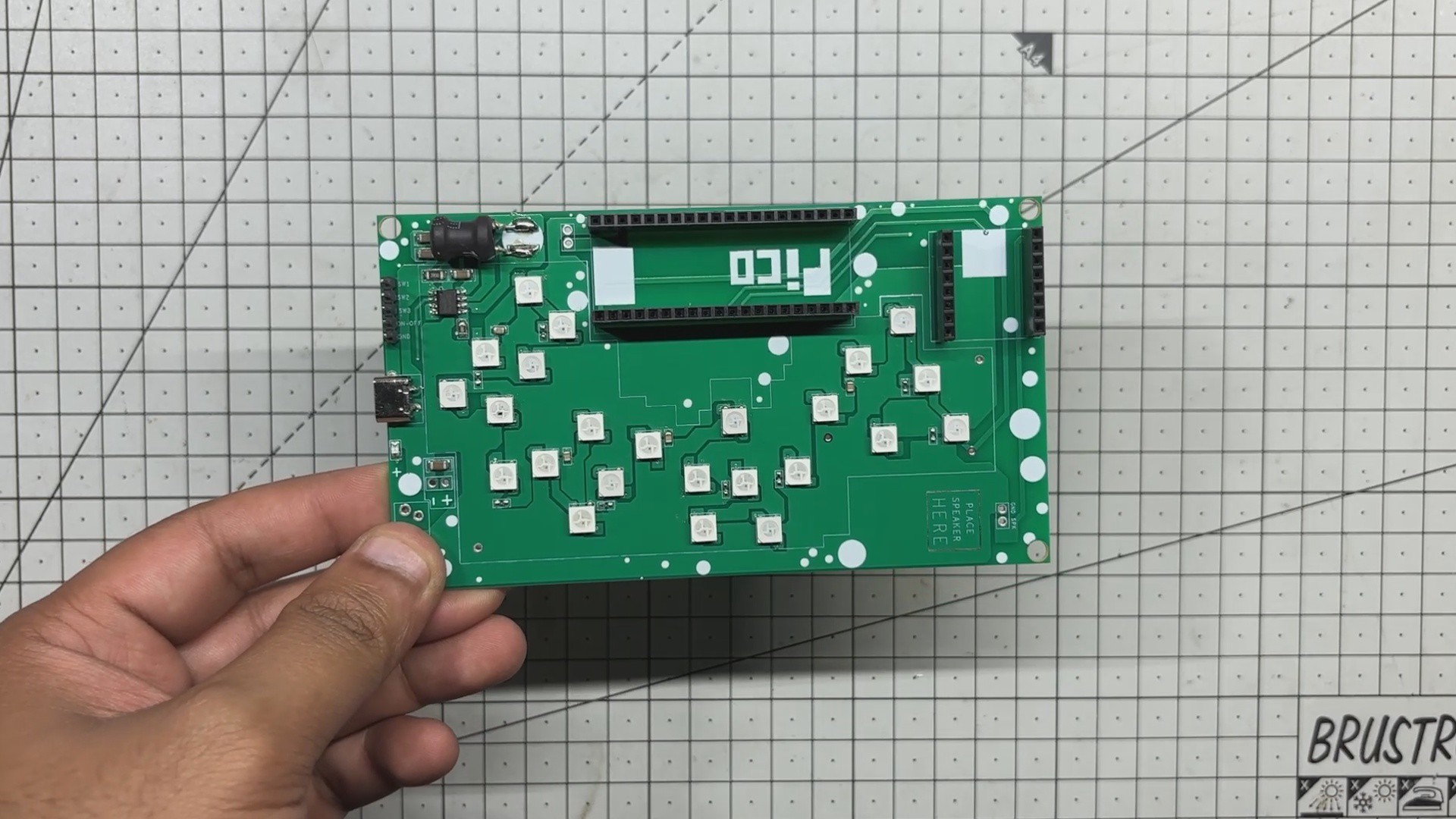

 Lithium ION
 Loann Boudin